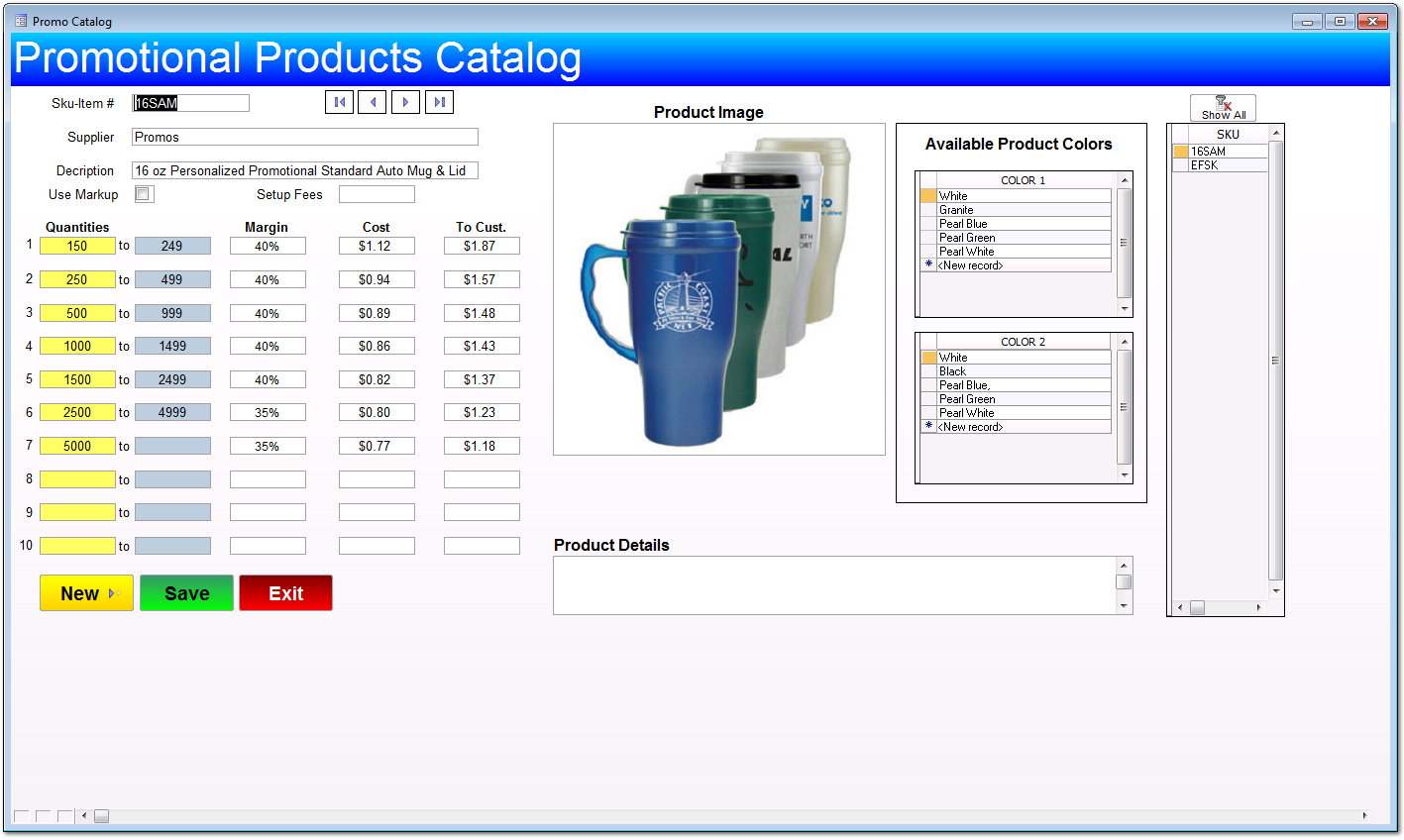
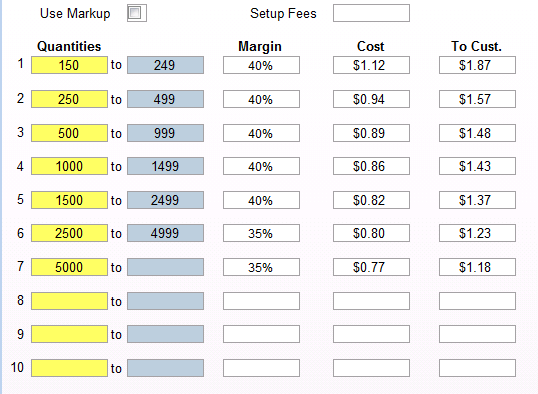
Enter the quantity ranges in the Yellow fields. The powder blue fields will be automatically filled in.
Next enter the Margin or Markup percentage you wish to charge for each quantity level. T-Five defaults to Margin unless you check the "Use Markup" check box.
Now enter your cost for the product on each quantity level. T-Five will calculate the price to the customer.
Enter any Setup Fees. This are the fees you will charge the customer, not what the supplier charges you.
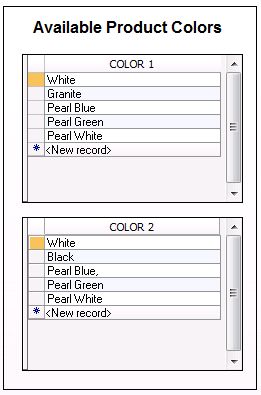
In this area you can enter the colors the item is available in. Color 1 would normally be used for the main color and you can use Color 2 for a second color such as a Lid color.
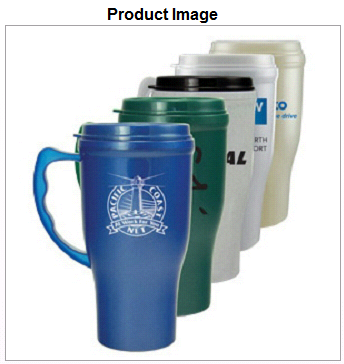
Clicking on the product image area allows you to assign an image to the item. This image will be displayed on the pricing screen and on the Quote/Invoice printouts. The actual image is not stored in the database. It is just a image reference to the image file location on your computer.